Reset Epson T50 and T60 without error 21000068
Get an error 21000068 when resetting your Epson T50 or Epson T60 and not see any solution to prevent the problem. Why not try this tips, but reset this method not recommended for beginner user and you must understand what you are doing. These tips from Jagdish Rathore (India) and I have been granted permission to publish on this blog. He also has been publishing this reset method on his blog on: http://www.epsonservice.blog.com/. If you do not have any knowledge about PCB and electronics, I recommend don’t try this reset methode.
Here the reset method from Jagdish Rathore:
Here the reset method from Jagdish Rathore:
- Turn off printer and open printer.
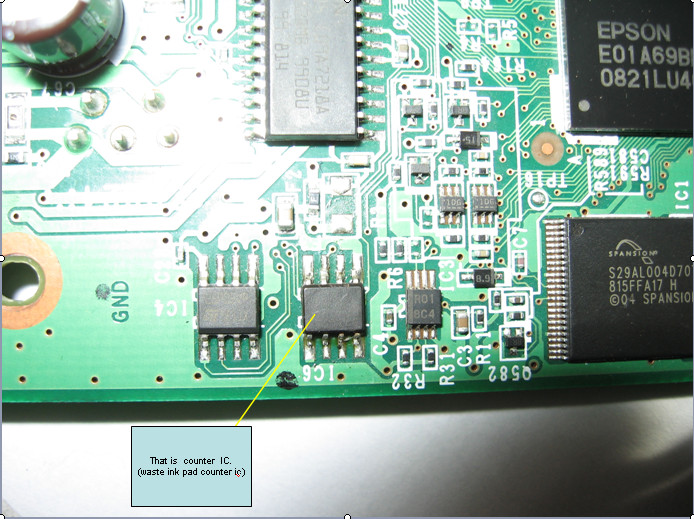
- Open your Epson main PCB board. You can view an 8 pin CMOS IC. That is Epson waste ink counter IC and found on all Epson Printer.
- You can reset your printer without any resetter by following these ways.
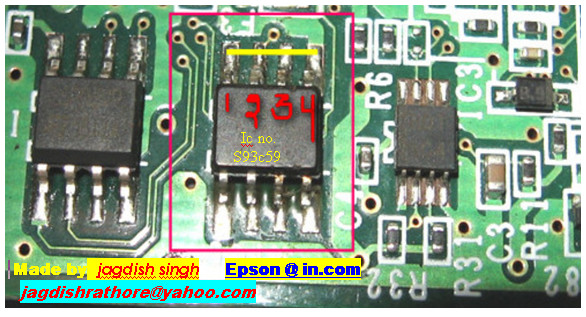
- Soldering pin no 1,2,3,4 by wire as show in PICTURE and now turn on printer for ”20 second”
- After 20 second turn off printer and remove soldering wire from pin no. 1,2,3,4 ( back in original condition)
- Now turn on your printer
- And now your printer will be RESET

Resetter Epson stylus T10 T11 T20E TX200 TX400
Suitable for Epson Stylus T10,T11,T20E,TX200,TX400 Inkjet Printer
Original ink cartridges Model
73N Black Ink Cartridge (Standard Ink)
73N Cyan Ink Cartridge (Standard Ink)
73N Magenta Ink Cartridge (Standard Ink)
Specifications:
* Offered with new version Combo chip with Switch and buttons.
* Can used without original Cartridge on with the Switch down
* High quality, low cost, easy maintenance
* 80ml volume of ink for continuous printing without changing cartridges
* Easy setup for long-term usage
* Designed to perform with maximum reliability, efficiency and ease of operation
* Cuts the running costs of printers by 90% because the same ink tanks can be used over and over again
Continue reading..
Original ink cartridges Model
73N Black Ink Cartridge (Standard Ink)
73N Cyan Ink Cartridge (Standard Ink)
73N Magenta Ink Cartridge (Standard Ink)
Specifications:
* Offered with new version Combo chip with Switch and buttons.
* Can used without original Cartridge on with the Switch down
* High quality, low cost, easy maintenance
* 80ml volume of ink for continuous printing without changing cartridges
* Easy setup for long-term usage
* Designed to perform with maximum reliability, efficiency and ease of operation
* Cuts the running costs of printers by 90% because the same ink tanks can be used over and over again
HP Laserjet 4V and 4MV service mode
1. Hold down the [On Line], [Form Feed], and [Enter] keys while powering ON the printer, until all lights are illuminated and the Display Window is blank. (If the Display Window reads 05 SELF TEST at this point, the keys were released too soon. Repeat this step until successful.)
2. Press the [Form Feed] key, then the [Enter] key. The message SERVICE MODE is displayed briefly, then the printer automatically begins a 05 SELF TEST.
After several seconds, both Control Panel Indicators turn OFF. (The printer may display 02 WARMING UP if it has not warmed up completely.) After the printer has warmed up and passed the self test, SERVICE MODE is displayed.
3. Press [Menus] once to display SERVICE MENU.
4. Once it says SERVICE MENU press ITEM to scroll through service mode items.
To exit the Service Mode press the [On Line] key.
Continue reading..
2. Press the [Form Feed] key, then the [Enter] key. The message SERVICE MODE is displayed briefly, then the printer automatically begins a 05 SELF TEST.
After several seconds, both Control Panel Indicators turn OFF. (The printer may display 02 WARMING UP if it has not warmed up completely.) After the printer has warmed up and passed the self test, SERVICE MODE is displayed.
3. Press [Menus] once to display SERVICE MENU.
4. Once it says SERVICE MENU press ITEM to scroll through service mode items.
To exit the Service Mode press the [On Line] key.
How to Reset the protection counter of Epson T13 T1100 TX121 Printer
.png)
FIX PRINTER ERROR "parts inside printer end service life, waste ink pad counter overflow error"
Please follow the steps below to reset the protection counter effectively.
- Double click Adjprog.exe.
- Click “Accept” button.
- Click "Select" button. and choose your printer model then click "OK"
- Click “Particular adjustment mode” button.
- Select on “Waste ink pad counter” and click “OK” button.
- Check on Main pad counter and click on “Initialization” button and the program will reset the protection counter.
- Turn off the printer as a program instructed then turn on again.
- Click “Finish” button. and its done!
Warning: You might end up with ink leaking out of the printer if you dont either replace the waste ink pad or install external waste bin.Download Resetter Epson T13
Download Resetter Epson TX121
Download Resetter Epson T1100
Reset software program for Canon MP198 MP258 MP276 MP496 MP558 MP568 and MP648

Reset software program for Canon MP198, MP258, MP276, MP496, MP558, MP568, and MP648
FIX PRINTER ERROR "parts inside printer end service life, waste ink pad counter overflow error"
Follow the following steps:
All these steps must be done to reset your canon MP198, MP258, MP276, MP496, MP558, MP568, and MP648 printer.
Resetting Ink counter on the Printer.
Step 1:
Run “service_tool 1050.exe”. You can download the service tool software from this link: ServiceTool_1050Step 2:
Confirm detected USB-port numbers on USB port column.
Step 3:
Click “Main button” on Clear ink counter section. Make sure there are papers in the paper feed because the printer
will print after the process is complete.
Step 4:
Click “platen button” on the “Clear ink counter” section. The printer will print again.
Step 5:
Turn off the printer and then turn the printer on. You printer is ready for use.
Subscribe to:
Posts (Atom)