Showing posts with label printer. Show all posts
Showing posts with label printer. Show all posts
How to Resetting the maintenance count LaserJet 9040 9050 Series Printer
1. Turn the printer off.
2. Turn the printer back on and wait for the memory count, when the printer starts counting memory press the checkmark (Select) button.
3. Continue to hold down the checkmark button until all of the control panel LEDs are illuminated, then release the checkmark button.
4. When the checkmark button is released, "Select Language" will appear on the control panel.
5. Use the Up Arrow to scroll to NEW MAINTENANCE KIT .
6. Press the checkmark button.
Continue reading..
2. Turn the printer back on and wait for the memory count, when the printer starts counting memory press the checkmark (Select) button.
3. Continue to hold down the checkmark button until all of the control panel LEDs are illuminated, then release the checkmark button.
4. When the checkmark button is released, "Select Language" will appear on the control panel.
5. Use the Up Arrow to scroll to NEW MAINTENANCE KIT .
6. Press the checkmark button.

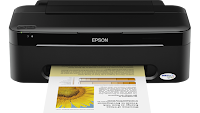
How to Reset the protection counter of Epson T13 T1100 TX121 Printer
.png)
FIX PRINTER ERROR "parts inside printer end service life, waste ink pad counter overflow error"
Please follow the steps below to reset the protection counter effectively.
- Double click Adjprog.exe.
- Click “Accept” button.
- Click "Select" button. and choose your printer model then click "OK"
- Click “Particular adjustment mode” button.
- Select on “Waste ink pad counter” and click “OK” button.
- Check on Main pad counter and click on “Initialization” button and the program will reset the protection counter.
- Turn off the printer as a program instructed then turn on again.
- Click “Finish” button. and its done!
Warning: You might end up with ink leaking out of the printer if you dont either replace the waste ink pad or install external waste bin.Download Resetter Epson T13
Download Resetter Epson TX121
Download Resetter Epson T1100
Printer Reset Program For Samsung Laserjets

Printer Reset Fix Program For-
List support model Samsung ML-1910, V1.01.00.83 Samsung ML-2520, V1.01.00.84 Samsung ML-2580N, V1.01.00.84 Samsung SCX-3200, V3.00.01.08 Samsung SCX-3200, V3.00.01.08 NU
Samsung SCX-3200, V3.00.01.07 Samsung SCX-3200, V3.00.01.07 NU Samsung SCX3200, V3.00.01.09 NU Samsung ML-1860, V1.01.00.18 Samsung ML-1860, V1.01.00.18 NU Samsung ML-1860, V1.01.00.19 NU Samsung ML-1865w, V3.00.01.05 Samsung ML-1865w, V3.00.01.05 NU Samsung ML-1660, V1.01.00.34 Samsung ML-1660, V1.01.00.34 NU
Solution Ink Out error for Epson Printer
At many cases of Epson printer when ink indicator is empty will show message Ink Out error when printing. This problem is usually marked with red led (ink led or resume led) is on (not blinking). There some ways solutions for the case, some among others that is :
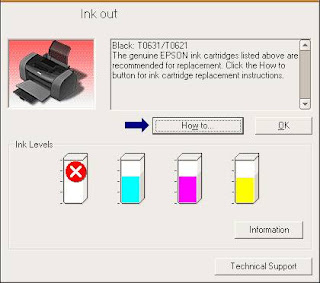

- Using Auto Reset Chips : if using original cartridges replace the original chips of cartridge with autoreset chips.
- Reset Chips of cartridges using chips resetter : some computer and printer shops usually sell chips resetter, otherwise find chips resetter You can use SSC software but at some new Epson printer this software not work (to use the software please read Resetter section on help file)
- Replace the cartridge with new cartridges : this is last solution. Before replace the cartridge ascertain beforehand if problem cause by chips, because I find some cases, ink out error is not caused by chips but cause by print head.
Know How to Reset Samsung ML 2240 laserjet printer

"How to reset samsung ml-2240 toner chip, samsung ml-2240 error light, samsung ml-2240 red light,error samsung ml-2240"
Printer Samsung ML-2240 is an very good laser printer in very less cost. But the problem is that, when we refill the cartridge with toner it doesnt print
giving red flashing led and will ask for changing the toner cartridge(New Toner Cartridge Is Costlier So, you can save money by simple resetting your
printer)
How to Reset Samsung ML-2240 laserjet printer? Do the steps below..
1. Open the back cover of the printer by unscrew 2 nuts.

2. There are 2 PCBs inside, which one is the Power supply circuit board and other is main printer board i.e., green color.
3. Find a small eprom 93C66 IC (8 pin) in Green Printer Board.

4. Connect PIN 1 and 4 of the IC 93C66 with a small cable and solder it.

5. Then make sure all the cables are plugged back, and turn on the printer Samsung ML-2240.
6. Wait a few moments until the Samsung ML-2240 Printer calibration is complete and the lights flash green.
7. After a light green flame, turn off the printer.
8. Disconnect the small cable that connects pin 1 and 4 IC 93C66.
9. Close the printer Samsung ML-2240, do not forget to attach the screw.
10. Samsung ML-2240 printer is ready for use again.
Download HP LaserJet Pro 400 Printer M401n Driver software tools and firmware
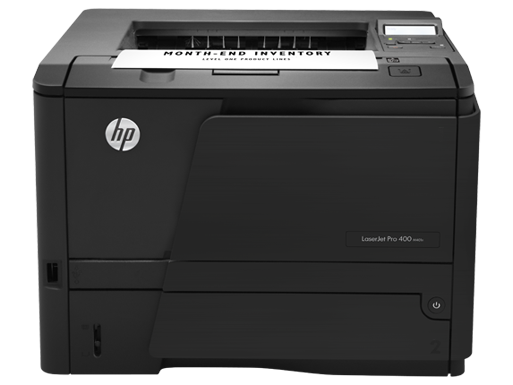
Get Printer Driver,
Product Installation Software,
Latest Firmware,
Utility
and Diagnostic Tools.
in the following links below.
Microsoft Windows 8 (32 bit)
Microsoft Windows 8 (64 bit)
Microsoft Windows 7 (32 bit)
Microsoft Windows 7 (64 bit)
Microsoft Windows server 2008 x64
Microsoft Windows server 2008 w32
Microsoft Windows Vista
Microsoft Windows Vista (64 bit)
Microsoft Windows XP
Mac OS X
Linux os
http://h20000.www2.hp.com/bizsupport/TechSupport/DriverDownload.jsp?lang=en&cc=us&prodNameId=5166603&taskId=135&prodTypeId=18972&prodSeriesId=5096252&lang=en&cc=us
Free Download XEROX Series printer Service Manua

Xerox 4003 5.5 Mb
Xerox 4004 5.5 Mb
Xerox DocuColor 1632 12.3 Mb
Xerox DocuColor 1632 33.6 Mb
Xerox DocuColor 2006 10.5 Mb
Xerox DocuColor 2240 12.3 Mb
Xerox DocuColor 2240 33.6 Mb
Xerox DocuPrint N17 30.9 Mb
Xerox DocuPrint N24 44.7 Mb
Xerox DocuPrint N32 44.7 Mb
Xerox DocuPrint N2025 12.6 Mb
Xerox DocuPrint N2825 12.6 Mb
Xerox DocuPrint N3225 44.7 Mb
Xerox DocuPrint N40 44.7 Mb
Xerox DocuPrint N4025 44.7 Mb
Xerox DocuPrint P1202 7.0 Mb
Xerox Laser printer 4010 12.7 Mb
Xerox P8E 8.1 Mb
Disc contents
Xerox Phaser-DocuPrint Disc.part01 50.5 Mb
Xerox Phaser-DocuPrint Disc.part02 50.5 Mb
Xerox Phaser-DocuPrint Disc.part03 50.5 Mb
Xerox Phaser-DocuPrint Disc.part04 50.5 Mb
Xerox Phaser-DocuPrint Disc.part05 50.5 Mb
Xerox Phaser-DocuPrint Disc.part06 50.5 Mb
Xerox Phaser-DocuPrint Disc.part07 50.5 Mb
Xerox Phaser-DocuPrint Disc.part08 50.5 Mb
Xerox Phaser-DocuPrint Disc.part09 50.5 Mb
Xerox Phaser-DocuPrint Disc.part10 10.6 Mb
Xerox WorkCentre pe220 355.3 Kb
Xerox WorkCentre pe220 5.6 Mb
Xerox WorkCentre pro 420 15.1 Mb
Xerox WorkCentre pro 420 15.1 Mb
Xerox WorkCentre XK40c 9.8 Mb
Xerox Phaser 140 220.1 Kb
Xerox Phaser 200 3.8 Mb
Xerox Phaser 340 17.7 Mb
Xerox Phaser 360 14.1 Mb
Xerox Phaser 380 12.0 Mb
Xerox Phaser 381 1.6 Mb
Xerox Phaser 440 4.0 Mb
Xerox Phaser 480 4.0 Mb
Xerox Phaser 500 4.9 Mb
Xerox Phaser 560 3.9 Mb
Xerox Phaser 600 8.6 Mb
Xerox Phaser 740 5.2 Mb
Xerox Phaser 750 4.7 Mb
Xerox Phaser 780 13.0 Mb
Xerox Phaser 790 10.5 Mb
Xerox Phaser 790 12.3 Mb
Xerox Phaser 840 6.6 Mb
Xerox Phaser 840 20.7 Mb
Xerox Phaser 840 20.7 Mb
Xerox Phaser 841 9.9 Mb
Xerox Phaser 850 6.6 Mb
Xerox Phaser 850 16.8 Mb
Xerox Phaser 860 6.6 Mb
Xerox Phaser 3100mfp 6.6 Mb
Xerox Phaser 3100mfp 6.6 Mb
Xerox Phaser 3124 227.5 Kb
Xerox Phaser 3125 227.5 Kb
Xerox Phaser 3150 4.0 Mb
Xerox Phaser 3200mfp, 5.6 Mb
Xerox Phaser 3200mfp 355.3 Kb
Xerox Phaser 3435 12.6 Mb
Xerox Phaser 3500 11.4 Mb
Xerox Phaser 4500 4.4 Mb
Xerox Phaser 4510 4.4 Mb
Xerox Phaser 6100 10.5 Mb
Xerox Phaser 8200 6.6 Mb
Xerox Phaser 8400 6.3 Mb
Xerox Phaser 8500 6.3 Mb
Xerox Phaser 8550 6.3 Mb
Dell 1355CN Printer Review
Overview
The Dell 1355cn is a laser printer that also has the capacity to copy, scan and fax. Despite all of that additional functionality, this printer is still quite small. To have that many ways to use a printer that takes up such a small amount of space is very nice, and that is one of the things we like best about this printer. It doesn’t have as many bells and whistles as some of the larger, more expensive laser printers on the market, but it performs its intended functions more than adequately for a very reasonable price. As always, there are a couple of things we don’t like about this printer, and we are going to look at those, First, though, we’re going to take a closer look at some of its pros.
Pros
One of the things we like best about this printer is its duty cycle. The duty cycle of the Dell 1355cn is 30,000 pages per month. For those of you unfamiliar with the term “duty cycle” in the evaluation of the performance of printers, it is worth understanding. In a nutshell, the duty cycle of a printer is the number of pages it can print in a one month time span without overheating or experiencing any serious technical problems. As you can see, for home and small business use, thirty thousand pages should be more than enough. If you need to print more than that, you are most likely a big enough business to own multiple printers anyway.
Another thing we like about the Dell 1355cn is the multi-functional capability which we mentioned earlier. Most people don’t need to send (or receive) very many faxes (or make many copies) at home, but when the need arises, you’ll be able to! The scanner, on the other hand, is something you’re likely to use a great deal. Any printed pictures you have (or are given) can now be converted into digital formats which can then be easily shared with friends and family members via email and Facebook. Plus, because of the printer’s WiFi capability, you will be able to easily network it with all of the other devices in your home.
Cons
There are two cons we have noticed about the Dell 1355cn. First, it’s slower than most other laser printers. Second, the paper tray only holds one hundred sixty pages. Of course, if you’re just printing things at home from time to time, neither of those factors should matter anyway.
Samsung CLX 3185FW Laser Multifunction Printer – What You Need To Know Before Buying It
Overview
If you need a multifunctional printer which is rendering the highest quality full color photos, you need to know that Samsung CLX-3185FW printer leads the market in this department. It offers impressive color laser prints and copies, which is great for home use. The simple wireless setup and the eco copying feature makes this printer a very easy to use device.
Pros
You can connect an entire office to the Wi Fi network with just a press of a button. Samsung tried to create a very easy to set multifunctional printer, and because of this fact they put emphasis on creating features for non-technical users. Something unusual for these kinds of printers, Samsung Company also invested in eco saving features. They created an eco-copying function that allows anyone to print 4 in one pages.
This thing did not satisfy some customers because once you will choose this feature you will have to change it over and over again, every time you are printing something. However, if you do not want to use this feature anymore, you can simply set another default option. Even though this kind of feature exists for a while, they gave it a cool name creating a special button for this option. So, now they say this is an innovative element. Loading 4 papers in the same time seems to be a slow and tricky job, because of the lack of an automatic document feeder. For a printer that is considered an all-in-one device, it is too slow.
Appearance was another aspect on which Samsung placed emphasis. Because this is a home use multifunctional device it needs to look very well. They added LED lighting and many other things like this in order to give the printer some style. They created a compact printer with the 16 x 14 x 13 inches dimensions, which can be put anywhere in the house because it is small and not very heavy.
Cons
The Samsung CLX-3185FW printer definitely costs too much for regular users. Its printing speed is very low, 16 pages per minute in white and black, while the printing speed in full color is 4 times lower, 4 pages per minute. However, you need to know that the printing quality is definitely higher than any other brand’s product. It prints at a resolution of 2400 x 600 dots per inch, but even though the printing quality is very high and the resolution is good, it cannot cover the disadvantages of a low printing speed.
The operating costs could prove to be higher than the ones of an old ink jet printer, which is a major disadvantages for small businesses with a low budget.
Canon i950 Color Bubble Jet Printer User Guide Manual

This mortal direct manual is practical for Canon i950 Apologise Strategy Jet Machine. Look you module perceive absolute statement of Ravine Machine i950 features and how to use them. Communication of the intruction: Basal Printing (Turning on the Machine, Weight Production, Using Primary Media, Writing with Windows, Printing with Fabric); Innovative Printing (Applications Included in the CD-ROM Assemblage,
Writing Borderless Photographs with Windows, Writing Borderless Photographs with Mack, Accessing Printer Utility, Adjusting Exposure Degree for Photographs, Using Machine Utility Options); Publication Upkeep (Exchange an Ink Vessel, When Publication Becomes Syncope or Colors are Erroneous, Writing the Nose Curb Nous Cleansing, Indication Knowledge Wakeless Cleaning, Aligning the Pic Progression); Troubleshooting (Cannot Set the Machine Wood, Pic Quality is Impecunious or Contains Errors, Troubleshooting Machine Constituent, Medium Does Not Provender Right, Touching Mistake Messages, An Happening Content Appears on the Display). Avaliable the Canon i950 Alter Belch Jet Printer User Draw Intruction
How does a printer cartridge get recycled
The idea of recycling printer cartridges and toner is becoming more and more popular as awareness about it grows. As more people realize the environmental impact of their actions, many are turning to recycling in increasing numbers.
There are hundreds of millions of printers in the US today, and many more hundreds of millions of toners, or ink cartridges. Each printer will go through at least a few a year with light use, those who print much more will go through many hundreds.
Printer cartridges and toners are now classified as hazardous waste. They are made of industrial chemicals and take a very long time to degrade. Often polluting the surrounding area when they do. Many responsible toner retailers like Quikship offer recycling services as part of their business model. Even offering to pay the shipping for customers willing to recycle their consumables.
But what happens once the cartridge has been sent for recycling?
To start with they are sorted into type. Cartridges separated from toners, colors from black and those already recycled to those not. They are then cleaned up and prepared for recycling.
Laser toners are mainly sent back to their original manufacturers to be re-filled and re-used. Those that can be re-used are then sold again as recycled products, often at a discount. Those toners that can’t be recycled are either broken down into their component parts and re-used where they can be. The plastic that simply can’t be re-used in its original form is shredded and then recycled into generic plastic material. The metal is sorted into type and melted down to be re-used.
Inkjet cartridges are most often broken down to be recycled into other things. They are generally not re-used like toners. Inkjet technology requires a precision that recycled cartridges cannot offer at this time.
The cartridges are shredded, then sifted to separate the plastic from the metal. Both are then melted down into other things. They may even be melted down and re-used in another cartridge.
The reason that printer toners and cartridges are so abundant now is because of this recycling system. There simply aren’t the resources, or investment necessary to be able to produce brand new cartridges in such numbers without being able to re-use materials. Not only would there be less of them around, but they would also cost a lot more.
Taking a minute to recycle your empty printer cartridge or toner is not only a good thing for the environment, it also keep the industry moving and able to supply demand. Recycling helps the planet, and keeps the cost down. This is the holy grail as far as environmentalism is concerned.
Continue reading..
There are hundreds of millions of printers in the US today, and many more hundreds of millions of toners, or ink cartridges. Each printer will go through at least a few a year with light use, those who print much more will go through many hundreds.
Printer cartridges and toners are now classified as hazardous waste. They are made of industrial chemicals and take a very long time to degrade. Often polluting the surrounding area when they do. Many responsible toner retailers like Quikship offer recycling services as part of their business model. Even offering to pay the shipping for customers willing to recycle their consumables.
But what happens once the cartridge has been sent for recycling?
To start with they are sorted into type. Cartridges separated from toners, colors from black and those already recycled to those not. They are then cleaned up and prepared for recycling.
Laser toners are mainly sent back to their original manufacturers to be re-filled and re-used. Those that can be re-used are then sold again as recycled products, often at a discount. Those toners that can’t be recycled are either broken down into their component parts and re-used where they can be. The plastic that simply can’t be re-used in its original form is shredded and then recycled into generic plastic material. The metal is sorted into type and melted down to be re-used.
Inkjet cartridges are most often broken down to be recycled into other things. They are generally not re-used like toners. Inkjet technology requires a precision that recycled cartridges cannot offer at this time.
The cartridges are shredded, then sifted to separate the plastic from the metal. Both are then melted down into other things. They may even be melted down and re-used in another cartridge.
The reason that printer toners and cartridges are so abundant now is because of this recycling system. There simply aren’t the resources, or investment necessary to be able to produce brand new cartridges in such numbers without being able to re-use materials. Not only would there be less of them around, but they would also cost a lot more.
Taking a minute to recycle your empty printer cartridge or toner is not only a good thing for the environment, it also keep the industry moving and able to supply demand. Recycling helps the planet, and keeps the cost down. This is the holy grail as far as environmentalism is concerned.
Epson printer test pages
Epson printers dont always give you the option to print a true configuration page. Some printers can print a test page, which may or may not show information about the printer. Config page/test page instructions are linked to below.
Stylus series:
- Stylus C88
Continue reading..
Stylus series:
- Stylus C88
Bagaimana cara Reset Printer iP1880 dengan resetter
Untuk mereset printer iP1880 tidak perlu harus menunggu lama untuk mendownload reseternya, karena kalau kita mau mencoba sebenarnya pakai reseter ip1700 bisa kita gunakan, kami sudah lama menggunakannnya untuk mereset printer IP1880 dengan general tool ip1700. maaf sengaja baru sekarang kami beritahukan... karena sifat orang Indonesia selalu menunggu dan berharap, Cara reset sementara biar bisa di pake
Printer jenis Ip1880 kalau sudah mencapai akumulasi cetakan tertentu maka printer akan mengalami blinking yaitu 4 x orange 1 hijau atau 8x orange dan 1x hijau, untuk mengatasinya anda bisa mereset sementara dengan menggunakan tombol power dan resume, untuk lebih detailnya silahkan ikuti cara berikut :
1. Cabut kabel power dari arus AC (listrik)
2. Tekan tombol power (tahan) kemudian colokan kabel power ke Listrik
3. Tekan tombol resume 2x (tekan pertama nyala lampu orange, kedua lampu indikator hijau)
4. Kemudian lepaskan, maka printer akan warming up kemudian ready.
Continue reading..
Printer jenis Ip1880 kalau sudah mencapai akumulasi cetakan tertentu maka printer akan mengalami blinking yaitu 4 x orange 1 hijau atau 8x orange dan 1x hijau, untuk mengatasinya anda bisa mereset sementara dengan menggunakan tombol power dan resume, untuk lebih detailnya silahkan ikuti cara berikut :
1. Cabut kabel power dari arus AC (listrik)
2. Tekan tombol power (tahan) kemudian colokan kabel power ke Listrik
3. Tekan tombol resume 2x (tekan pertama nyala lampu orange, kedua lampu indikator hijau)
4. Kemudian lepaskan, maka printer akan warming up kemudian ready.
Dell 2155cn Printer Review
The Dell 2155cn laser printer offers a range of tools to help you get any project done by ensuring high quality products that provide excellent performance. While this printer has many great features, there are also things that take away from what you would expect from the Dell name.
Some of the drawbacks are the resolution, no dual page printing ability, printing speed, no built-in wireless capabilities for printing, the confusing and hard to understand interface, not Energy Star qualified, and its size. When you think of a laser printer you picture a high resolution which allows you to print outstanding images. Unfortunately the 2155cn only has a 600 x 600 dpi resolution. While this will allow you to print great images its not as good as other multifunctional printers out there. It does not provide for wireless printing, which can be a drawback if you have a wireless laptop you work from. It does not allow double sided printing, which can be a drawback if your business does a lot of this. When we talk about a confusing and hard to understand interface, we mean that there are many buttons on the printer and the big display pad is what makes it confusing. With all the great things this printer does do, it is not Energy Star qualified, so you will not be saving any money by using this printer. The final drawback is the size of the printer itself. It weighs 66 pounds and has dimensions of 17.1 inches wide, 22.81 inches tall and 21 inches thick. This makes it bulky and heavy, so if space is an issue in your office, this may be a problem.
Now that we have talked about all the negative things the Dell 2155cn has to offer, let’s concentrate on the plus side of things. The laser printer comes with 256 MB of memory already installed. It will print up to 24 pages per minute, which covers both black and white, and color printing. This is not extravagant but it gets the job done. You can also print up to 40,000 pages each month with damaging or causing major wear and tear on the printer. When you think about it that’s a lot of paper. The printer does offer an Ethernet connection which will allow multiple computers to be networked to the printer. It has a wireless port that can be used for peripheral devices. You can print directly from a camera or flash drive using the USB 2.0 port that is available. The large paper tray will hold up to 250 pages of paper, which will enable time spent refilling the printer. The Dell 2155cn also handles different types of printing media. This includes envelopes, regular or thick paper, labels, coated paper, and postcards. It can even handle printing on paper as large as 8.5 x 14 inches. The control pad is positioned on top the printer which allows the user to go through the settings and features on the small display screen.
Some of the drawbacks are the resolution, no dual page printing ability, printing speed, no built-in wireless capabilities for printing, the confusing and hard to understand interface, not Energy Star qualified, and its size. When you think of a laser printer you picture a high resolution which allows you to print outstanding images. Unfortunately the 2155cn only has a 600 x 600 dpi resolution. While this will allow you to print great images its not as good as other multifunctional printers out there. It does not provide for wireless printing, which can be a drawback if you have a wireless laptop you work from. It does not allow double sided printing, which can be a drawback if your business does a lot of this. When we talk about a confusing and hard to understand interface, we mean that there are many buttons on the printer and the big display pad is what makes it confusing. With all the great things this printer does do, it is not Energy Star qualified, so you will not be saving any money by using this printer. The final drawback is the size of the printer itself. It weighs 66 pounds and has dimensions of 17.1 inches wide, 22.81 inches tall and 21 inches thick. This makes it bulky and heavy, so if space is an issue in your office, this may be a problem.
Now that we have talked about all the negative things the Dell 2155cn has to offer, let’s concentrate on the plus side of things. The laser printer comes with 256 MB of memory already installed. It will print up to 24 pages per minute, which covers both black and white, and color printing. This is not extravagant but it gets the job done. You can also print up to 40,000 pages each month with damaging or causing major wear and tear on the printer. When you think about it that’s a lot of paper. The printer does offer an Ethernet connection which will allow multiple computers to be networked to the printer. It has a wireless port that can be used for peripheral devices. You can print directly from a camera or flash drive using the USB 2.0 port that is available. The large paper tray will hold up to 250 pages of paper, which will enable time spent refilling the printer. The Dell 2155cn also handles different types of printing media. This includes envelopes, regular or thick paper, labels, coated paper, and postcards. It can even handle printing on paper as large as 8.5 x 14 inches. The control pad is positioned on top the printer which allows the user to go through the settings and features on the small display screen.
Subscribe to:
Posts (Atom)