Showing posts with label color. Show all posts
Showing posts with label color. Show all posts
How to Reset Epson Stylus Color Printers
There are 2 ways to reset epson printers counter, that is, youy can use software resetter (SSC or Adj Program) or reset manual. If Reset use software, you can follow the scent usage of software, if reset manual, using combination button in the printers.
Following some ways to reset manual Epson Printers :
1. EPSON Stylus Color
3. EPSON Stylus Color 400, 600
4. EPSON Stylus Color 440, 640, 740, 460, 660, 670, 760, 860, 880, 1160
5. EPSON Stylus Color 680
6. EPSON Stylus Photo 785, 895
7. EPSON Stylus Photo 890, 1280, 1290
8. EPSON Stylus Color 800, 850
9. EPSON Stylus Color 900, 980
10. EPSON Stylus Color 3000
Following some ways to reset manual Epson Printers :
1. EPSON Stylus Color
- Pressing and holding ALT+FONT+LOAD+PAUSE buttons combination
- Press POWER button
- Release all buttons
3. EPSON Stylus Color 400, 600
- Pressing and holding LOAD/EJECT and CLEANING buttons
- Press POWER button and hold it until you will see blinking INK OUT and PAPER OUT leds
- Release all buttons
- In 2-3 seconds time press LOAD/EJECT and CLEANING buttons again.
4. EPSON Stylus Color 440, 640, 740, 460, 660, 670, 760, 860, 880, 1160
- Pressing and holding LOAD/EJECT and CLEANING buttons
- Press POWER button and hold it until You will see blinking INK OUT and PAPER OUT leds.
- Release all buttons.
- In 2-3 seconds time press and hold CLEANING button, until all leds will blink.
5. EPSON Stylus Color 680
- Pressing and holding LOAD/EJECT and CLEANING buttons,
- Press POWER button and hold it until You will see blinking INK OUT and PAPER OUT leds.
- Release all buttons.
- In 2-3 seconds time press and hold LOAD/EJECT button, until all leds will blink.
6. EPSON Stylus Photo 785, 895
- Pressing and holding Maintenance and Roll Paper buttons
- Press POWER button, You will see blinking Error led.
- Release all buttons.
- In 2-3 seconds time until led is blinking press and hold for 10-12 seconds Roll Paper button, until all leds will blink.
7. EPSON Stylus Photo 890, 1280, 1290
- Pressing and holding Maintenance and Roll Paper buttons, press POWER button, You will see blinking Power led
- Release all buttons
- In 2-3 seconds time until led is blinking press and hold for 10-12 seconds Roll Paper button, until all leds will blink
- In 2-3 seconds time press LOAD/EJECT and CLEANING buttons again.
8. EPSON Stylus Color 800, 850
- Pressing and holding LOAD, CLEANING Color and CLEANING Black buttons
- Press POWER button and hold it until You will see blinking INK OUT and PAPER OUT leds.
- Release all buttons.
- In 2-3 seconds time press and release CLEANING Color button, You will see leds blinking.
9. EPSON Stylus Color 900, 980
- Pressing and holding LOAD/EJECT and CLEANING buttons
- Press POWER button, You will see blinking INK OUT led
- Release all buttons
- In 2-3 seconds time press and hold CLEANING button for 10-12 seconds.
10. EPSON Stylus Color 3000
- Pressing and holding PAUSE, LF/FF and DOWN ARROW buttons
- Turn on printer.
- Release all buttons.

Canon i950 Color Bubble Jet Printer User Guide Manual

This mortal direct manual is practical for Canon i950 Apologise Strategy Jet Machine. Look you module perceive absolute statement of Ravine Machine i950 features and how to use them. Communication of the intruction: Basal Printing (Turning on the Machine, Weight Production, Using Primary Media, Writing with Windows, Printing with Fabric); Innovative Printing (Applications Included in the CD-ROM Assemblage,
Writing Borderless Photographs with Windows, Writing Borderless Photographs with Mack, Accessing Printer Utility, Adjusting Exposure Degree for Photographs, Using Machine Utility Options); Publication Upkeep (Exchange an Ink Vessel, When Publication Becomes Syncope or Colors are Erroneous, Writing the Nose Curb Nous Cleansing, Indication Knowledge Wakeless Cleaning, Aligning the Pic Progression); Troubleshooting (Cannot Set the Machine Wood, Pic Quality is Impecunious or Contains Errors, Troubleshooting Machine Constituent, Medium Does Not Provender Right, Touching Mistake Messages, An Happening Content Appears on the Display). Avaliable the Canon i950 Alter Belch Jet Printer User Draw Intruction
HP Color LaserJet 2840
We tested the HP Color LaserJet 2840 when it first came out in 2005, since then we kept it on in the office as it seemed to work well. Its a monochrome multifunction with all the usual bells and whistles, but best of all, it just works.
As far as quality is concerned, the 2840 performed very well indeed. Black text was legible down to 2-point and appeared as sharp and bold as anything weve seen. Black and white graphics were impaired slightly by horizontal banding, but photos looked remarkably smooth and captured fine details well. Color text was excellent and blending was smooth overall. Color graphics looked similarly well done, especially in large blocks, and were good overall despite some crosshatching.
The fax and scan functions were equally as good. The 2840 allows you to scan or fax to and from email, do just about anything over the network and allows you to transfer documents and files to and from either paper or digital formats. It does pretty much everything a small office multifunction should do.
Being an HP device, the 2840 is a well constructed machine, well built and looks like it could last years, in fact, ours has. The after-sales support is also legendary. While we havent had cause to use it with this, we have with other machines, and not only are their technicians English speakers, they are trained and know their stuff too. While that shouldnt really be a high point of support, it unfortunately is in these times.
The software is fully featured and simple to use. There is a plethora of control functions included with them and you can pretty much control everything from the desktop if youd like.
The quality of the grayscale scan in our tests at the default settings was clean and smooth. The only complaint with the output was that its color scans were somewhat pale and lacking in detail. That can be easily remedied within the control panel though.
The LaserJet 2840 has been with us a while, and has performed admirably in that time. We have no problems recommending it to others, or to continue using it into the future. Its a great multifunction, with just the right balance of features and price to make it affordable and sensible for the small office.
Continue reading..
As far as quality is concerned, the 2840 performed very well indeed. Black text was legible down to 2-point and appeared as sharp and bold as anything weve seen. Black and white graphics were impaired slightly by horizontal banding, but photos looked remarkably smooth and captured fine details well. Color text was excellent and blending was smooth overall. Color graphics looked similarly well done, especially in large blocks, and were good overall despite some crosshatching.
The fax and scan functions were equally as good. The 2840 allows you to scan or fax to and from email, do just about anything over the network and allows you to transfer documents and files to and from either paper or digital formats. It does pretty much everything a small office multifunction should do.
Being an HP device, the 2840 is a well constructed machine, well built and looks like it could last years, in fact, ours has. The after-sales support is also legendary. While we havent had cause to use it with this, we have with other machines, and not only are their technicians English speakers, they are trained and know their stuff too. While that shouldnt really be a high point of support, it unfortunately is in these times.
The software is fully featured and simple to use. There is a plethora of control functions included with them and you can pretty much control everything from the desktop if youd like.
The quality of the grayscale scan in our tests at the default settings was clean and smooth. The only complaint with the output was that its color scans were somewhat pale and lacking in detail. That can be easily remedied within the control panel though.
The LaserJet 2840 has been with us a while, and has performed admirably in that time. We have no problems recommending it to others, or to continue using it into the future. Its a great multifunction, with just the right balance of features and price to make it affordable and sensible for the small office.
HP Color LaserJet 3500 supplies status page
A supplies status page from the Color LaserJet 3500 shows how much toner is remaining for each color cartridge, as well as the status of other maintenance parts. To print a supplies status page:
- Press the down arrow button to get into the menu.
- Keep pressing it until "INFORMATION" is the highlighted choice on the screen.
- Press Select (the green button with the check mark on it) to choose that option.
- Scroll down to "PRINT SUPPLIES STATUS PAGE".
- Press Select.
Continue reading..
- Press the down arrow button to get into the menu.
- Keep pressing it until "INFORMATION" is the highlighted choice on the screen.
- Press Select (the green button with the check mark on it) to choose that option.
- Scroll down to "PRINT SUPPLIES STATUS PAGE".
- Press Select.
Xerox DocuColor 252 Color 3 in 1
PROS:
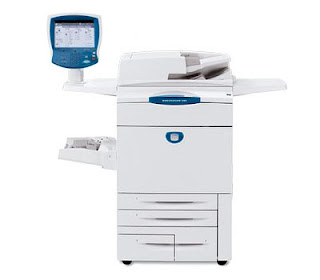
The first thing that grabs your attention on the DocuColor 252 is the prominently positioned blue control panel. The touch screen User Interface (UI) gives easy access to popular functions, with additional menus for all of the DocuColor’s features. A traditional 10-keypad is provided along with the buttons most users are used to using with copiers.
One of the nice features of this multifunction is it can multitask. A person can scan or copy directly on the DocuColor while print jobs are being performed via the network.
The DocuColor 252 prints at speeds up to 50 pages per minute in color, 65 single-sided pages per minute in black-and-white. Having one of the highest resolutions at 2,400 x 2,400, it gives you professional high-image quality and clarity. The polymerized toner helps enhances definition and sharpness. The adjustable enhanced gloss level gives a photographic quality to printed images.
The duplexing Automatic Document Feeder (ADF) can handle the copying and scanning of your 2-sided originals, be they in color or in B&W. With a 250-sheet capacity, it handles about twice the amount of other ADFs.
The DocuColor 252 comes with two 500-sheet cassette trays, an 870-sheet and a 1,140-sheet tandem tray that supports papers from 8½ “x 11” up to 11” x 17”. A 250-sheet multi-purpose bypass tray handles various paper weights and sizes up to 13” x 19”.
The 252 comes standard with Ethernet. 512MB of memory and an 80GB hard drive enables this DocuColor to handle any size print request and to securely save jobs to the hard drive.
Color copies up to 13” x 19” can be made directly on the glass platen, or using the Automatic Document Feeder (ADF). The duplexing ability of the ADF allows for making copies from 2-sided originals without having to manually flip the papers. Zoom ranges from 25% to 400% with a choice of 1% increments, automatic resizing, or in ten jumps. Up to 9,999 copies can be reproduced. Resolution and print speeds are spec’d at 2,400 x 2,400 dpi and by scanning one time and storing the images to memory allows for copying speeds of 65 ppm. You can choose if copies are to be collated or stacked into the offset catch tray.
Scanned documents can be exported as 600 x 600 PDF files and sent to a network directory, e-mail, or on the internal hard drive.
Three optional Finishers can give the DocuColor 252 full publishing features including staple, multi-hole punch, Z, C, and V-folding and binding for catalogs and magazines. The DocuColor is able to interface with 3rd party peripherals such as magnetic strip readers (for ID cards) and coin machines, to expand its functions beyond the workplace to universities and self-serve copy stores.
CONS:
In spite of Xerox’s claims, you don’t want to just plop anybody in front of this unit without some training. As a support engineer, I found the most downtime for machines of this size comes when untrained people start “using” them. Since most buyers of DocuColors and WorkCentres will want to establish passwords and user accounts for auditing and security, the end-user will need to be taught the basics (like what their password is). With a 1-hour training and “lab”, I‘ve been able to get the most technophobic people productive on these office machines. Here’s where an hour of prevention is worth days of non-productivity.
Normally multifunction printers have identical resolutions for scan and copy functions, often with the scanning resolutions being higher. While it’s not a big issue, it is interesting that the DocuColor 252 is only spec’d to have a 600 x 600 dpi resolution in scan mode.
INK / TONER NEEDS:
The DocuColor uses Xerox’s Emulsion Aggregate toner, a resin-like ink for sharper imaging and less color bleeding. Prints that use polymerized toners like EA tend to have a nice glossy look and a waxy feel to them.
Dual black cartridges allow for easy changing of the highest consumed item without stopping the printer. Each black toner provides 5% coverage on 30,000 pages, and the three colors 34,000 pages. Just remember that if you’re doing full-color spread layouts and photograph prints, the actual toner usage per page is going to be at least 10 times more, reducing the number of pages you can get out of a cartridge.
The toner can be purchased separately, especially if the yellow toner gets consumed the most. To save on costs, toner combo-packages are also available.
Other consumables to consider are replacement of the imaging units (drums) every 65,000 prints (150,000 for black), the fuser and transfer roller (every 160,000 images), and the waste toner bottle.
Subscribe to:
Posts (Atom)